
Use it on two computers, or add a server
Keep two computers, or a computer and a server, in step through a private GitHub repository, and choose which runs the routines.
On this page
Two machines share one mission control through a private GitHub repository, an online folder only you can see. Your notes and the text files of your folder travel through it. Keys, photos and files stay on each machine.
Connect a private GitHub repository
#Open github.com/new, signing up for free if you have no account. Name the repository and choose Private. Leave the rest, so it starts empty, and click Create repository.
In the notebook you already use, open Settings, then Sync and schedule ownership.
Paste the repository's address into Private GitHub repository and click Connect record sync. Sign in to GitHub if asked.
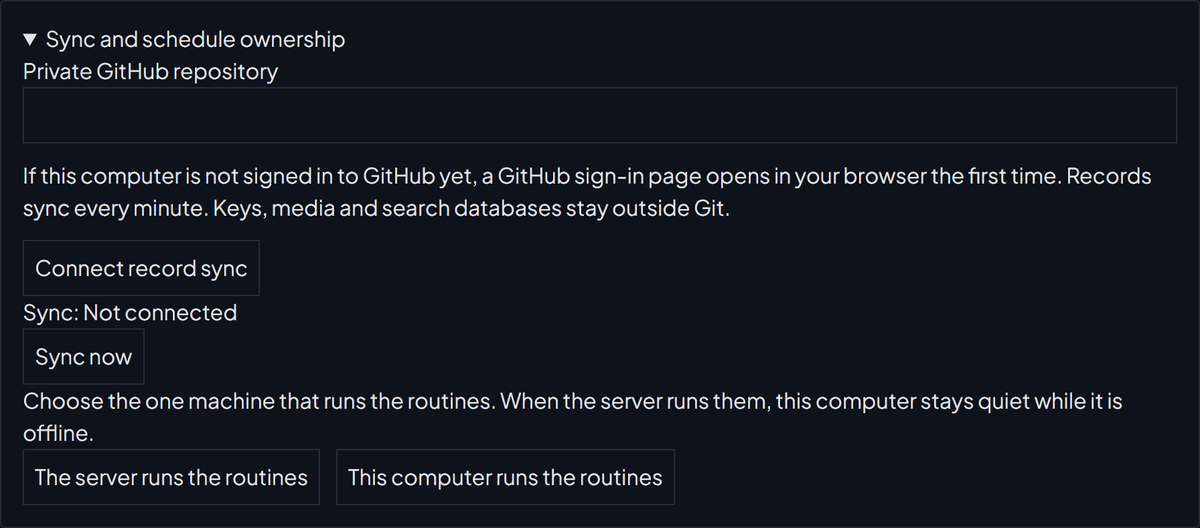
It now syncs every minute, or at once with Sync now.
Add the second machine
#A computer: install Godspeed Mission Control with the repository's address. On Windows it goes into Address of a mission control you already have (optional):. On a Mac or Linux, put yours in place of the example:
curl -fsSL https://godspeedmissioncontrol.com/install | bash -s -- --repo https://github.com/you/my-mission-controlThen connect your AI account there too, as in First setup.
A server: install the one-line server. In its Telegram setup, tap No, bring in the one I have on GitHub.
Share photos and files with a server
#- In the server's notebook, open Settings, Pair the server and media, and click Create a five minute pairing code.
- On the computer, open the same section, fill in Server address and Pairing code, and click Pair this computer.
- Under Offline media, choose what this computer keeps a copy of, and click Save offline choice.
Choose which machine runs the routines
#Only one machine runs the routines and the nightly backup. Choose it under Sync and schedule ownership:
- The server runs the routines: best, as a server is always on. A computer must be paired first.
- This computer runs the routines: only while it and its notebook are on.
If the server goes away, click This computer runs the routines.
When both machines changed the same thing
#Both versions are kept. Under Settings, Review conflicting edits, keep one or click Combine the edits. A very large removal waits there too, so one mistake cannot empty every machine.
Something wrong or unclear? Tell us on GitHub.