
Install Godspeed Mission Control on Linux
Install it on your Linux computer with one line in a terminal, then open your notebook, the page where you talk to Godspeed.
This page is for a Linux computer you sit at. For a rented server, see Install on a server. The install takes a few minutes.
On Ubuntu, Debian and other systems that use apt, the installer adds what it needs. On other systems, install Git and Node.js first, from your system's own software.
Install
#Open a terminal, signed in as yourself, not as root.
Paste this line and press Enter:
curl -fsSL https://godspeedmissioncontrol.com/install | bashWhen it asks for your password, type it and press Enter. The installer uses
sudoto add missing programs and to start the notebook with your computer.Wait for the last lines:
Open your notebook
#Your notebook is the page in your web browser where you talk to Godspeed and see what it knows and does.
You see Your notebook, with a big Chat with Godspeed button.
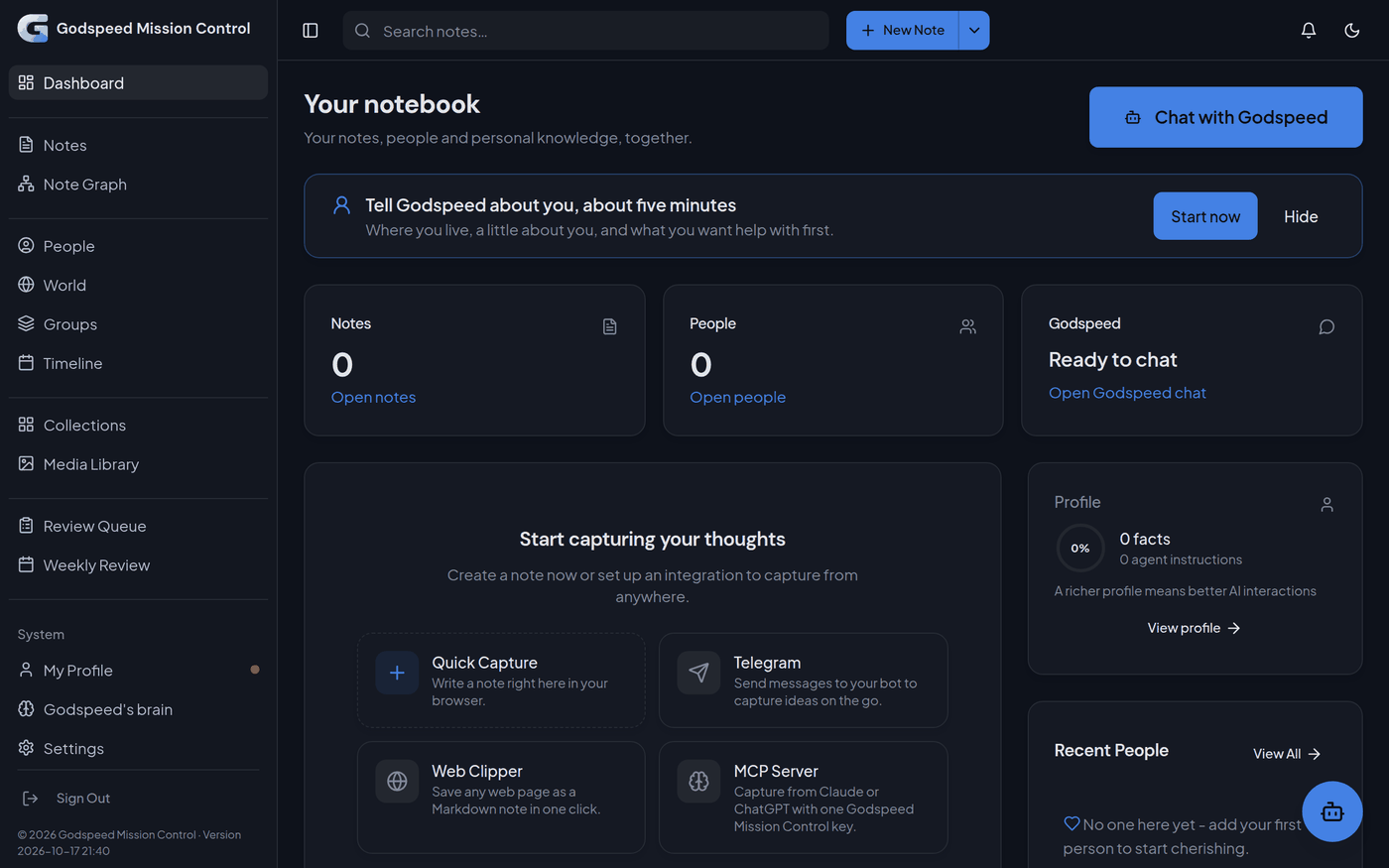
The notebook starts with your computer from now on. Only this computer can open it.
Next
#First setup: connect your AI, so Godspeed can answer you and your routines can run.
Check the download first
#To read the installer before it runs, use these two lines instead of step 2. The first saves it as install-godspeed.sh in the folder your terminal is in:
curl -fsSLO https://raw.githubusercontent.com/MichaelZelbel/godspeed-mission-control/beta/install-godspeed.shOpen the file in a text editor and read it. The second line runs it:
bash install-godspeed.shIt is the same file the line in step 2 runs, and it installs the same release.
If something is different
#- "The notebook runs while you are logged in." The installer could not use
sudo. Godspeed works while you are logged in. To keep it running after you log out, an administrator runs thesudo loginctl enable-lingerline the message shows, once. - It stops and says to add
--beside. This computer already has an earlier Godspeed. Download the installer with the first line above, then runbash install-godspeed.sh --beside --godspeed "$HOME/. The new one gets its own folder, and the earlier one stays as it is.godspeed-v2" - "The Hermes found at … so Godspeed keeps using the one at …" Hermes is the program that runs your assistant. The installer found another Hermes on this computer that does not work for your account. Godspeed keeps the one it used until now, so there is nothing to do.
- "Hermes, the AI program Godspeed uses, does not load for this account" Your assistant and add-ons cannot reach your AI until it does. Everything else was installed. Problems after installing says what to do.
Something wrong or unclear? Tell us on GitHub.