
Give it your first goal
Give Godspeed a first goal and see the daily work it starts tonight. This ends the setup.
A goal is something you want to reach, in your own words. Godspeed works on it every day from now on.
Give it a goal
#- In your notebook, click Goals in the sidebar, under Dashboard.
- Under Your first goal, write your goal into What do you want to reach?, for example "Run 10 km without stopping by June".
- Click Start. Godspeed takes your time zone from your browser.
Your goal now shows on the Goals page, with what was done for it and how it is going (Add, follow, change or stop a goal). You can also give a goal in the chat: "My goal is to run 10 km without stopping by June."
What happens next
#Your first goal starts Godspeed's daily work, at these times on your own clock:
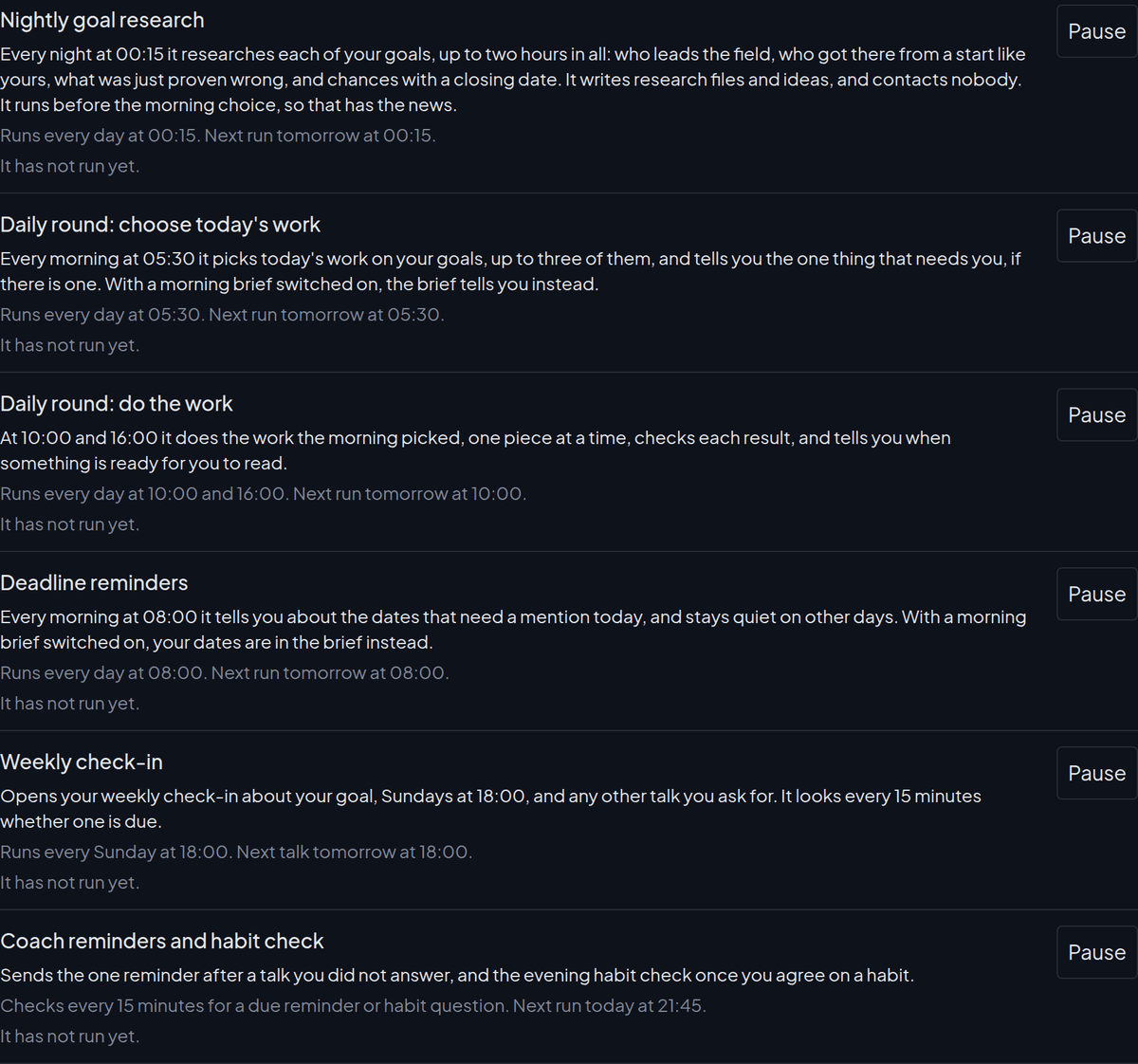
- 00:15 It researches your goal: who reached it from a start like yours, and chances with a closing date.
- 05:30 It picks up to three pieces of work on your goal for today.
- 08:00 It reminds you of a deadline when one comes close.
- 10:00 and 16:00 It does that work, and tells you when something is ready to read.
- Sundays at 18:00 A short check-in with you about your goal, prepared the day before.
On a server, its results come to you in Telegram. On your own computer, open Notes in the notebook and look in the folder From your routines.
It asks you before anything that costs money or reaches another person. With an API key, this daily work uses your AI account every day; what it costs depends on the model you chose. How the daily work runs explains it all.
See it working
#Open Settings and scroll to Routines. Each job your goal started has a row with its next run. After a run, the row says when it last ran and whether it worked.
Next
#You are set up. Two good next steps:
- Tell it about yourself, a five-minute chat, so its work fits you.
- Track your weight, or anything else with one message.
Something wrong or unclear? Tell us on GitHub.