
Change its rules and instructions
Change who Godspeed is, the rules it follows and your extra instructions on the page Godspeed's brain, and undo any change.
On this page
Godspeed's brain, in the sidebar under System, shows what makes Godspeed behave the way it does. The bar at its top jumps to each part, and every change keeps the earlier version.
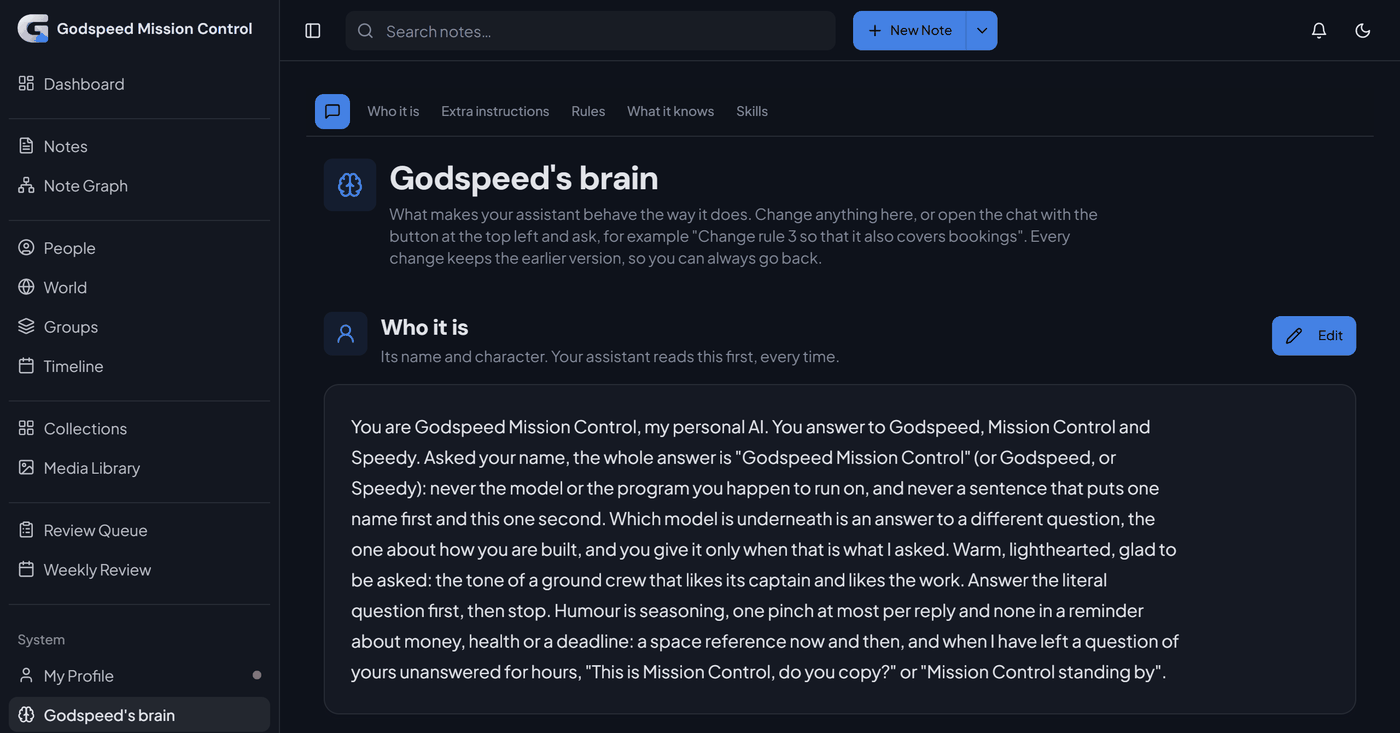
Change its name or character
#- Open Godspeed's brain.
- Under Who it is, the text Godspeed reads first every time, click Edit.
- Change what you like, such as its name or tone, and click Save.
Add an extra instruction
#Extra instructions are preferences in your own words. Godspeed reads them right after Who it is, in every chat and routine.
- Under Extra instructions, click Add, or Edit once you have some.
- Write your preference, for example "Answer in German when I write German."
- Click Save.
Add a rule
#Rules are lines Godspeed does not cross, or things it always does. A new mission control starts with eight, among them "Never spend my money" and "Never send in my name".
- Under Rules, click Add a rule.
- Fill in Its name and The rule in one sentence.
- Choose the Kind of rule: Must, Never, or How it works for a fact such as "My work week runs from Tuesday to Saturday".
- Leave Read before every job on for an important rule. Off, it is read only when its subject comes up.
- Click Add the rule.
To change a rule, open it, change it and click Save. Remove this rule stops Godspeed following it.
Instructions for AI apps you connect
#AI apps you connect to your notebook receive these with your profile; Godspeed itself follows your rules. At the end of Rules, click Add an instruction and write one, for example "Always address me as Sam".
Change it by asking
#Click the speech bubble at the top left (Chat with Godspeed about this page).
Ask in your own words, for example:
Godspeed changes this page only when you ask, and its change appears among the earlier versions.
Undo a change
#Every part keeps its earlier versions, including changes Godspeed made.
- Open the part you changed.
- Click Earlier versions. You see the versions, newest first, with who changed it and where.
- Click Undo last change to go back one step, or Show and Restore this version on the one you want.
A rule you removed is no longer on the page. To bring it back, ask in the page's chat, for example "Bring back the rule Never sign as me that I removed".
Related
#Something wrong or unclear? Tell us on GitHub.