
Install Godspeed Mission Control on Windows
Install it on your Windows PC with one installer, then open your notebook, the page where you talk to Godspeed.
You need a 64-bit Windows PC and an internet connection. You click a few times, then the installer works by itself for up to half an hour.
Install
#Download GodspeedSetup.exe.
Open the downloaded file. If Windows shows Windows protected your PC, click More info, then Run anyway. Windows says this about new programs it does not know yet.
The setup opens. Click Next on each page: the suggested choices are the right ones.
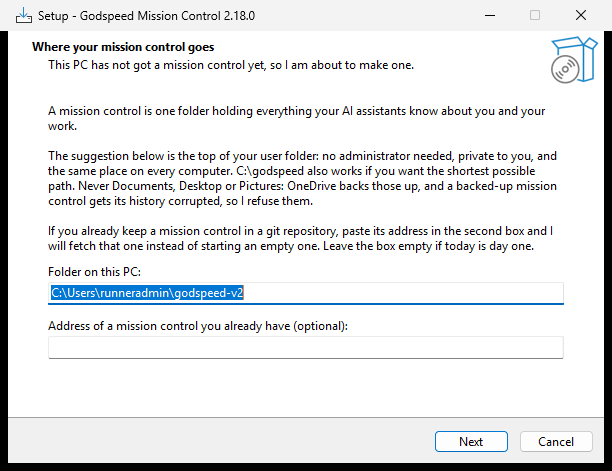
On Ready to Install, click Install.
A window opens and shows what the installer is doing. Leave it open. If Windows asks whether it may install Git or Node.js, click Yes. The installer also sets up Hermes, the program that runs your assistant.
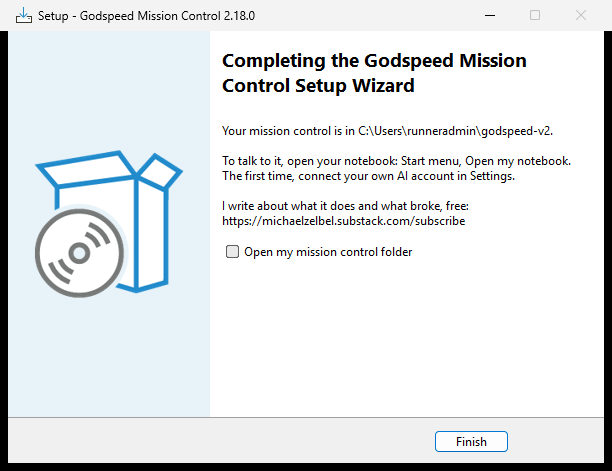
The last page says Your mission control is in and names your folder, and how to open your notebook and connect your AI. Click Finish.
Open your notebook
#Your notebook is the page in your web browser where you talk to Godspeed and see what it knows and does.
Press the Windows key, type
notebookand choose Open my notebook.Your browser shows Your notebook, with a big Chat with Godspeed button.
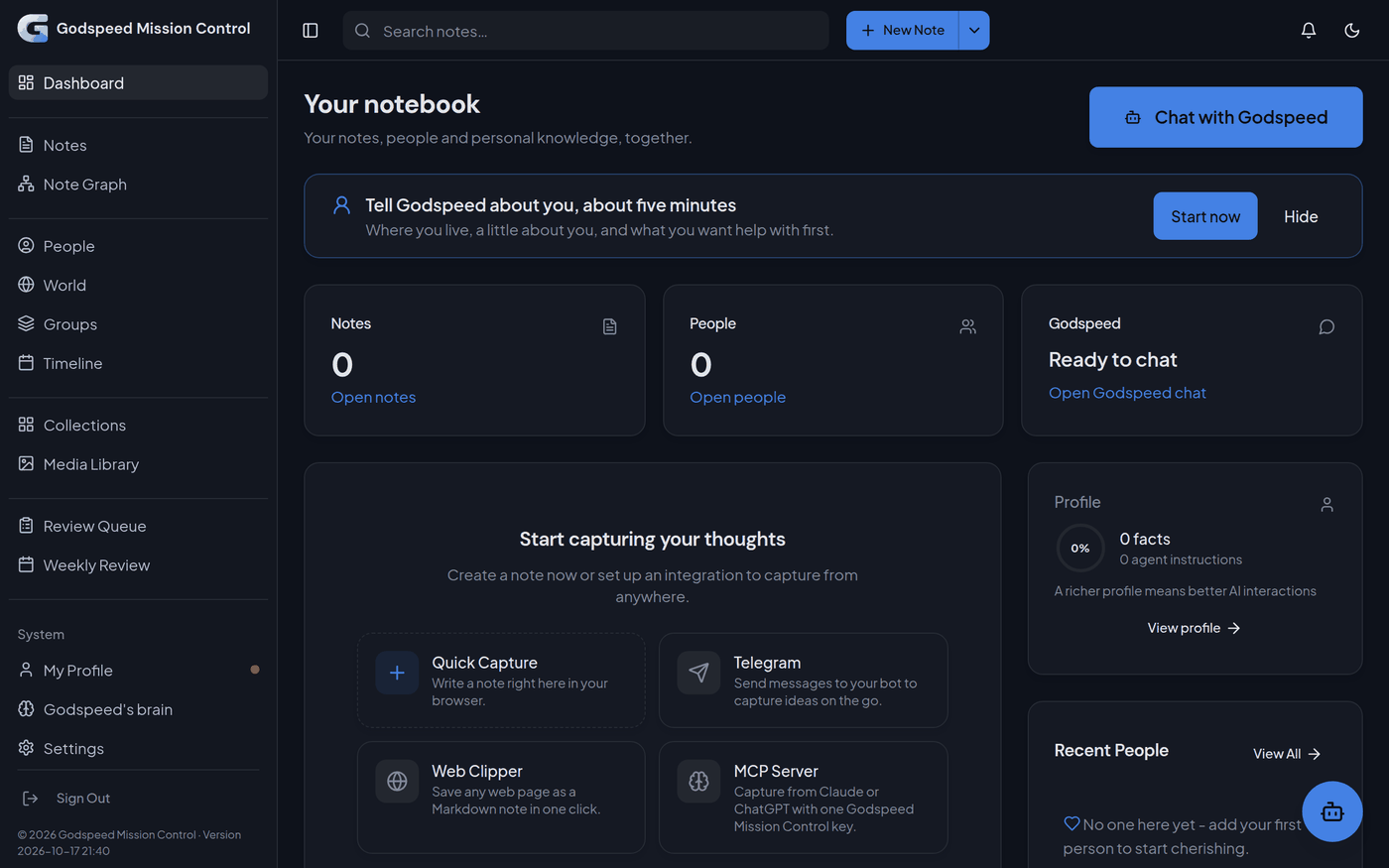
From now on the notebook starts every time you sign in to Windows, without opening your browser. Open it from the Start menu whenever you want it: if it has not started yet, Open my notebook starts it and opens it when it is ready. Only this PC can open it.
Next
#First setup: connect your AI, so Godspeed can answer you.
If something is different
#- The installer says "You already have a mission control". This PC has the previous edition of Godspeed. Click Next to bring it up to date and add the notebook. To leave it as it is, tick the box, click Next and keep the suggested folder. Ready to Install then says "I am going to make a SECOND mission control". See also Update.
- Ready to Install says "I am going to UPDATE it". This PC has Godspeed Mission Control already, and the installer brings it up to date, keeping everything you made.
- The last page says "Setup did not finish". Nothing you had is lost. Run the installer again, or see Problems while installing.
Install without the wizard
#To set up a PC without clicking, run this in PowerShell in the folder with the installer. It asks nothing and shows nothing, and on a PC that has Godspeed already it updates it:
$p = Start-Process .\GodspeedSetup.exe -ArgumentList '/VERYSILENT','/SUPPRESSMSGBOXES' -PassThru; $p.WaitForExit(); $p.ExitCodeIt waits until the installer is done, up to half an hour, and shows 0 when it worked. Typed on its own, .\ gives the prompt back at once while the installer keeps working. What it did is in %LOCALAPPDATA%\.
Something wrong or unclear? Tell us on GitHub.