
Back up and restore your mission control
Find your automatic backups, save one now, restore one to read it, and keep a copy away from the machine.
Godspeed backs itself up on the machine it runs on:
- Every night after 03:00, on the machine that runs your routines (the jobs it does at set times). The newest seven are kept in
.godspeed/in your mission control folder.backups/ - Before every update on your own computer. Once the update has worked, the copy it made stays and older ones are removed.
A backup holds your notes with their history, the readable files in your folder, and the photos and files in your notes. Keys and passwords are not in it.
The copy made before an update holds only what an update can change, so it never holds your work/ folder. When your mission control folder is a Git repository, the copy holds only what Git does not already keep, and Git keeps the rest. On a grown mission control that is megabytes and seconds instead of gigabytes and minutes.
Save a backup now
#Nightly backups run from the day you install. Whenever you like, save one by hand too.
In the notebook, open Settings and scroll to Recovery.
Click Save a backup.
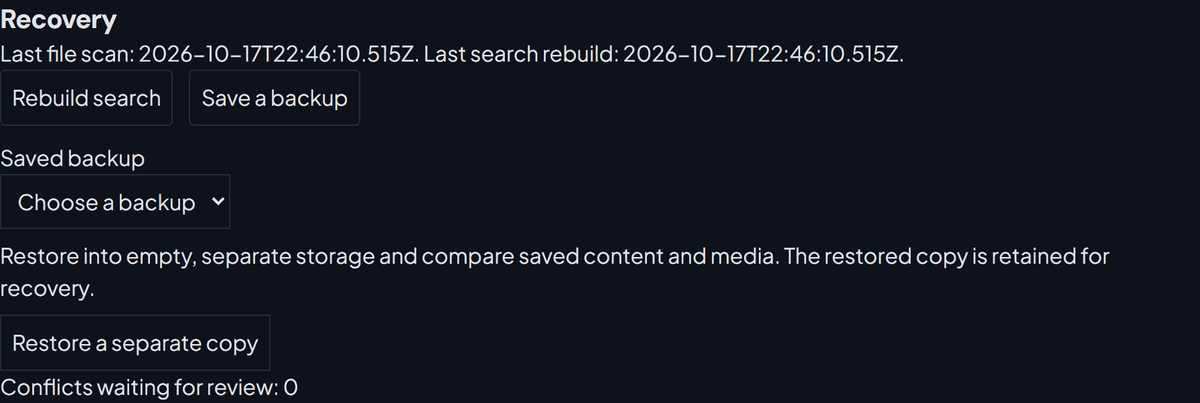
You see "The backup was saved." It counts as that day's nightly backup.
Recovery also says when the last nightly backup was made. If one did not work, Recovery says so and why, and so does the notebook's bell. Once your first goal has started your routines, you also get one message about it that day. It comes in Telegram while that is connected, otherwise as a note in From your routines. A failed backup is tried again by itself, after an hour at first.
Restore a backup
#A restore never replaces your live notebook. It unpacks the backup into a separate folder and checks every file.
- Under Recovery, choose a backup in Saved backup.
- Click Restore a separate copy.
You see "Restored and checked" and the Restored folder. Open its files in any text editor, for example to copy back a lost note's text.
If the computer itself is lost, start a new one from your GitHub copy, as Move to another computer shows.
Keep a copy somewhere else
#Backups sit on the same disk as your notebook. Keep one elsewhere too:
- Sync to a private GitHub repository: see Use it on two computers.
- Copy the newest backup to a USB drive. On Windows, type
%USERPROFILE%\into File Explorer's address bar. On a Mac, press Cmd+Shift+. (full stop) in Finder to see folders starting with a dot.godspeed-v2\ .godspeed\ backups
Back up a server
#A server keeps its backups on that server. Save one before every update. To copy them off the one-line server, log in as root and run:
cd /opt/godspeed-mission-controldocker compose cp godspeed:/opt/data/full-candidate/workspace/.godspeed/backups ./backups-copyThen, on your own computer, with your server's address in place of 203.0.113.7:
scp -r root@203.0.113.7:/opt/godspeed-mission-control/backups-copy .Something wrong or unclear? Tell us on GitHub.