
First setup: connect your AI
Connect your AI account so Godspeed can think and answer you. On a server you also make your account and connect Telegram.
On this page
Go to the part for your installation: Windows, Mac or Linux or a server. Have your API key ready (What you need).
For this beta, use an API key in Settings. Subscription sign-in through Hermes has not been checked from start to finish on a fresh account.
On Windows
#Follow With an API key, in Settings or With a ChatGPT plan, in Settings below. The same steps work on Windows.
To use a subscription instead, open Settings, then Open the Windows assistant. The Hermes app opens. Hermes is the program that runs your assistant. Follow its current account prompts.
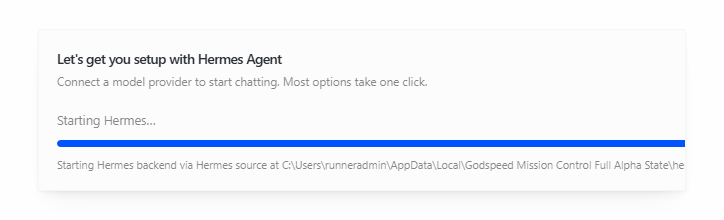
Back in your notebook, click Chat with Godspeed and ask "What can you do for me?". An answer means it works. Settings, Your AI names the model your routines use and checks whether they reach it.
If the Hermes app does not open, see Problems after installing.
On a Mac or Linux computer
#With an API key, in Settings
#- In your notebook, click Settings in the sidebar. Your AI is near the top.
- Under Your AI service, choose OpenRouter, OpenAI or Another service. For another service, fill in Its address, as the service gives it.
- Fill in Model, written the way your service writes it, and paste your Key.
- Keep Use it for the daily routines and the chat too ticked, and click Test and connect.
- It answers "Connected. The routines, the chat and the notebook use it, and the routines reached it just now." Your routines and your chat now use this AI.
With a ChatGPT plan, in Settings
#- In your notebook, click Settings. Under Your AI service, choose ChatGPT (sign in with your ChatGPT plan).
- Click Sign in with ChatGPT. Open the page it shows on any device, type the code there and sign in with your ChatGPT account.
- It says "Connected. Your ChatGPT plan" with the model it found. Your routines and your chat now use your plan.
With a ChatGPT plan, or any account, in the terminal
#Open a new Terminal window and run:
~/.local/bin/hermes modelHermes is the program that runs your assistant. This tells it which AI account to use.
Follow the current prompts for your provider, account and model. If it gives you a sign-in address and code, open that address in your browser and sign in there.
In your notebook, click Chat with Godspeed and ask "What can you do for me?". An answer means it works. Settings, Your AI names the model and checks whether your routines reach it.
On a server
#Make your account
#The private link opens Make it yours. Choose a Username and a Password of at least 12 characters, and click Create account.
You see your recovery code. Click Copy code or Download, and keep it somewhere private.
Tick I have saved my recovery code. and click Open Godspeed Mission Control. You see Connect Telegram.
Connect Telegram
#Telegram is how Godspeed writes to you on your phone. You make your own bot, a Telegram account that only talks to you.
- Click the link to BotFather on the page, Telegram's own bot for making bots. Send it
/, then a name, then a username that ends innewbot bot. - BotFather answers with your bot's token, a long line of letters and numbers. Paste it into Your bot's key and click Check and connect.
- Click Open @yourbot in Telegram, or scan the QR code with your phone, and press Start in the chat.
Connect your AI in Telegram
#- Your bot writes Connect an AI. Choose the company of your API key.
- Send the key as a message. The bot deletes your message at once.
- The bot answers a first test question and says your AI "is connected".
- It asks whether this is your first Godspeed Mission Control. Tap Yes, it is my first.
- A minute later it writes "Your Godspeed Mission Control is ready." Back on the setup page, click Continue to your notebook.
Next
#Something wrong or unclear? Tell us on GitHub.